Nanogames Accessibility Features
Nanogames are adapted to support a wide range of access methods.
See the Compatibility Chart outlining the accessibility for each game.
Uniform Interface
All the games use the same methods for adapting the games. There is no need to learn a new adaptation method for each game.

Game Editor
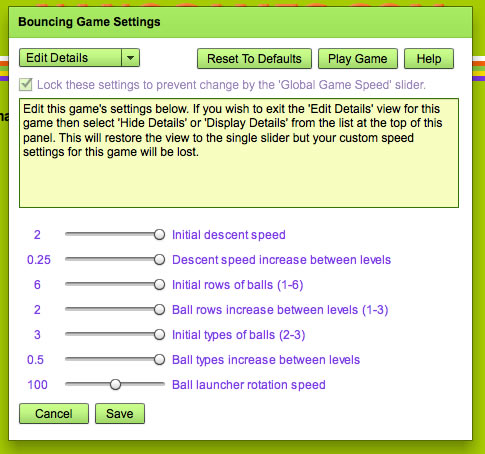
Each game has it's own editing panel where you can change many of the game settings through a very wide range, slowing the games dramatically, adding much more time, adding many more 'Lives' and many other settings.
Global Game Speed Controller
Frequently players will need to play Nanogames at a slower speed, this is easily achieved using the 'Global Game Speed' controller on the main screen. This single control adjusts the speed of all games simultaneously, through a very wide range. Using this control to quickly set all the games to a playable speed. The speed of individual games can then be refined using the 'Game Editor' screen (see below).
Player Controls
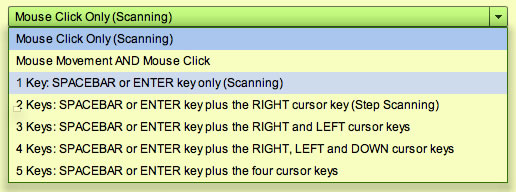
Choose your player control method from the 'Edit Player' menu. Standard keyboard and mouse control of the games is supported but there is also direct support for 'Single Switch Scanning' using a mouse click, key press, or a switch attached to either the mouse or keyboard.
Devices Supported
- Keyboard (including expanded and miniature keyboards)
- Mouse (including Headmouse, Touchscreen and other mouse alternatives)
- Joystick (using Joy2Mouse software)
- Speech Recognition (using 3rd party Speech Recognition software and mouse or keyboard commands)
Accessibility
- Adjust brightness, contrast and color tint of games
- Large objects for players with low vision or impaired coordination
- Optional key-release delay
- Support for Single Switch Scanning (keyboard, mouse or switch).