Getting Started Guide
Four quick tips to get the best out of your Nanogames1. Choose Your Control Method
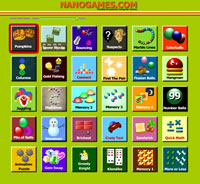
From the "Player Settings" menu (top left), choose "Player Settings".
From the Player Settings panel, select your control method. Options include Keyboard, mouse and touch screen. Alternative keyboards and mouse devices (headmouse, eye tracking) are also supported).
2. Quickly Change The Speed Of All Games

The fastest way to alter all the games is to use the 'Global Game Speed' slider (displayed near the top of the main screen). This control can be used to quickly adjust the speed of all 30 games (up to 90% slower). It's great for experimenting with the settings for all the games or for quickly adjusting the settings of all games for a new player.
Change Settings
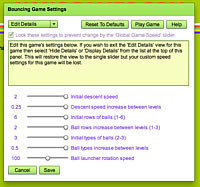
Hold down the SHIFT key and click on a game icon and the Game Settings Panel will open:
3. Select Full Screen Mode
Available from the main menu at the top screen. This switches the display to full screen and
removes the top menu from display.
4. Edit The Game Menu
Customize your list of games that appear on the main menu. More details...
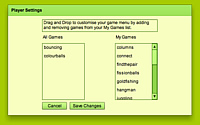
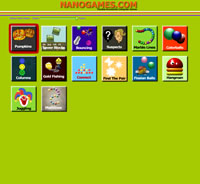
Player Settings